May 2024
How I used AWS IAM to enhance security in my cloud environment

In this project, I learned how to:
- 💡 Launch Amazon EC2 instances.
- 💡 Dive deep into AWS IAM with the implementation of Policies, Users and User Groups.
- 💡 Test the effectiveness of the IAM setting through the Policy Simulator
Step 1: Lauch 2 EC2 instances
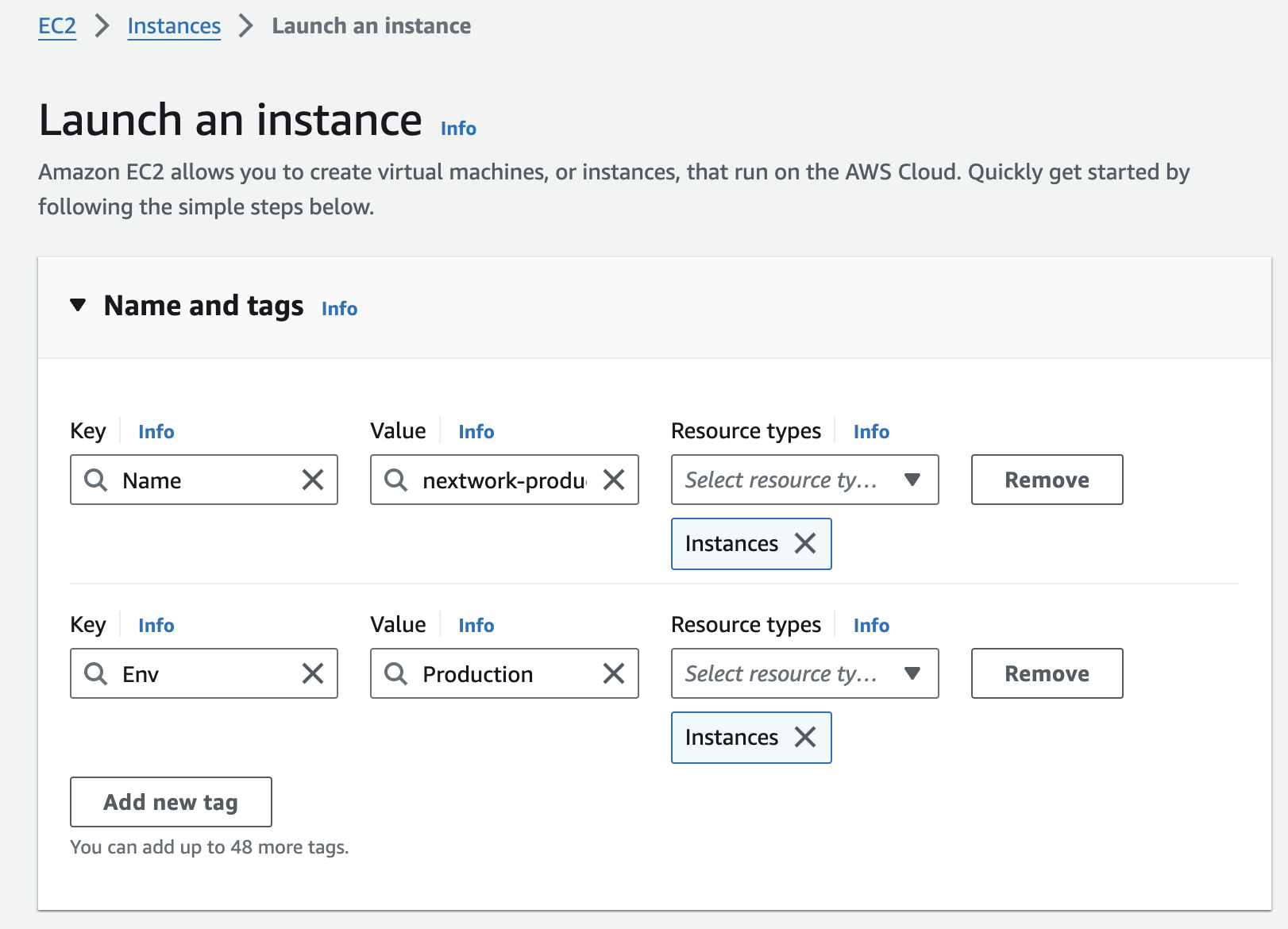
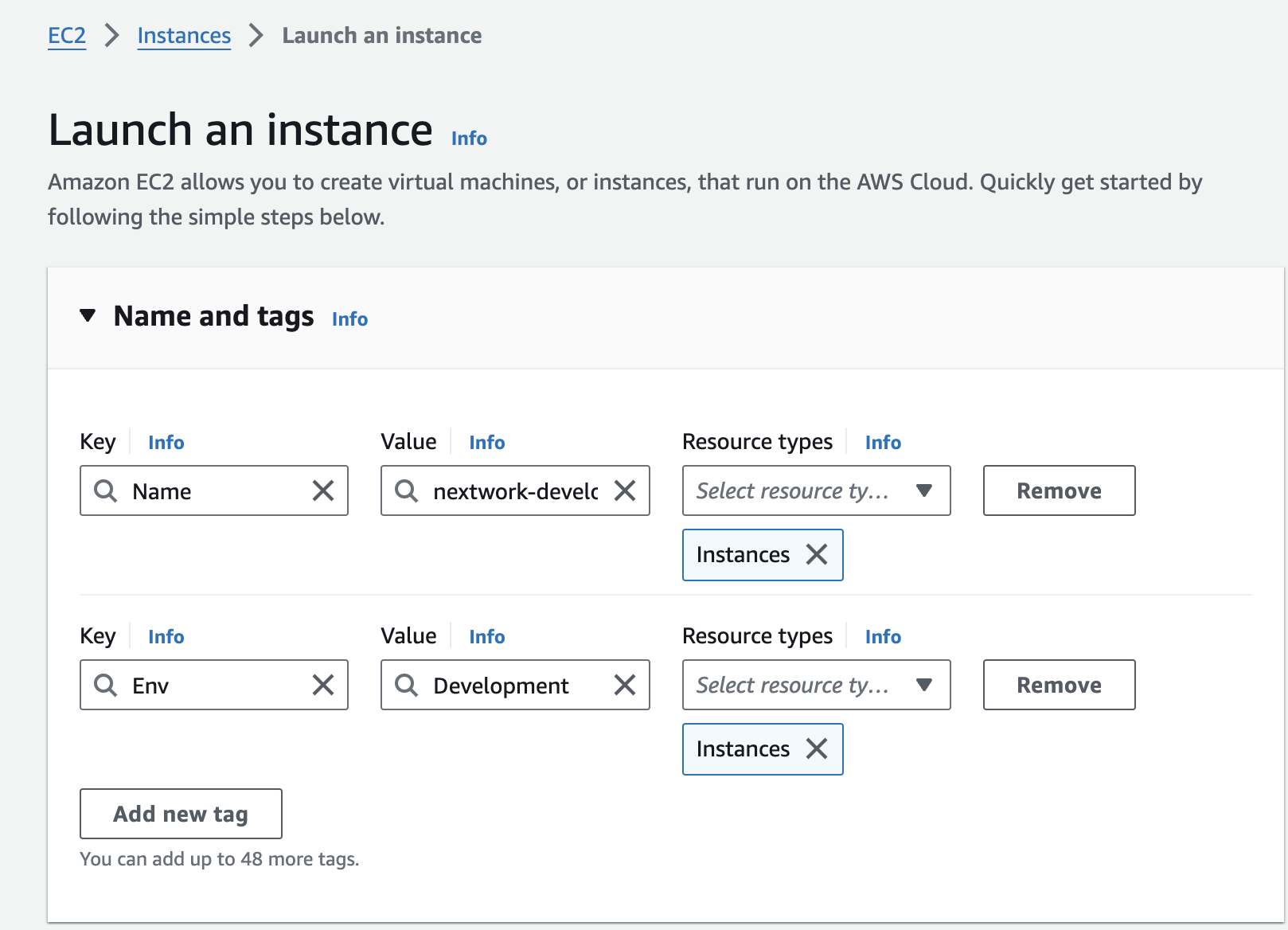
I've set up two EC2 instances, one with the tag of "development" and one with "production" to test the effectiveness of the permission settings.
Key notes ✏️:
What is EC2 instance?
A legendary AWS service! Amazon EC2 is a service that lets user to rent and use virtual computers in the cloud. They're like your personal computers, but they live on the internet instead of being physically in front of you.
An instance is a computer/server that gets produced by EC2. Just like when you buy a laptop, with EC2 instances, you can pick a virtual computer that fits what you need for your projects. You can customise your EC2 instance's CPU, memory, storage, and networking capacity and more!
What is the tag for?
Tags helps us with identifying all resources with the same tag at once (they are useful filters when you're searching for something), cost allocation, and applying policies based on environment types.
Step 2: Set Up IAM Policies
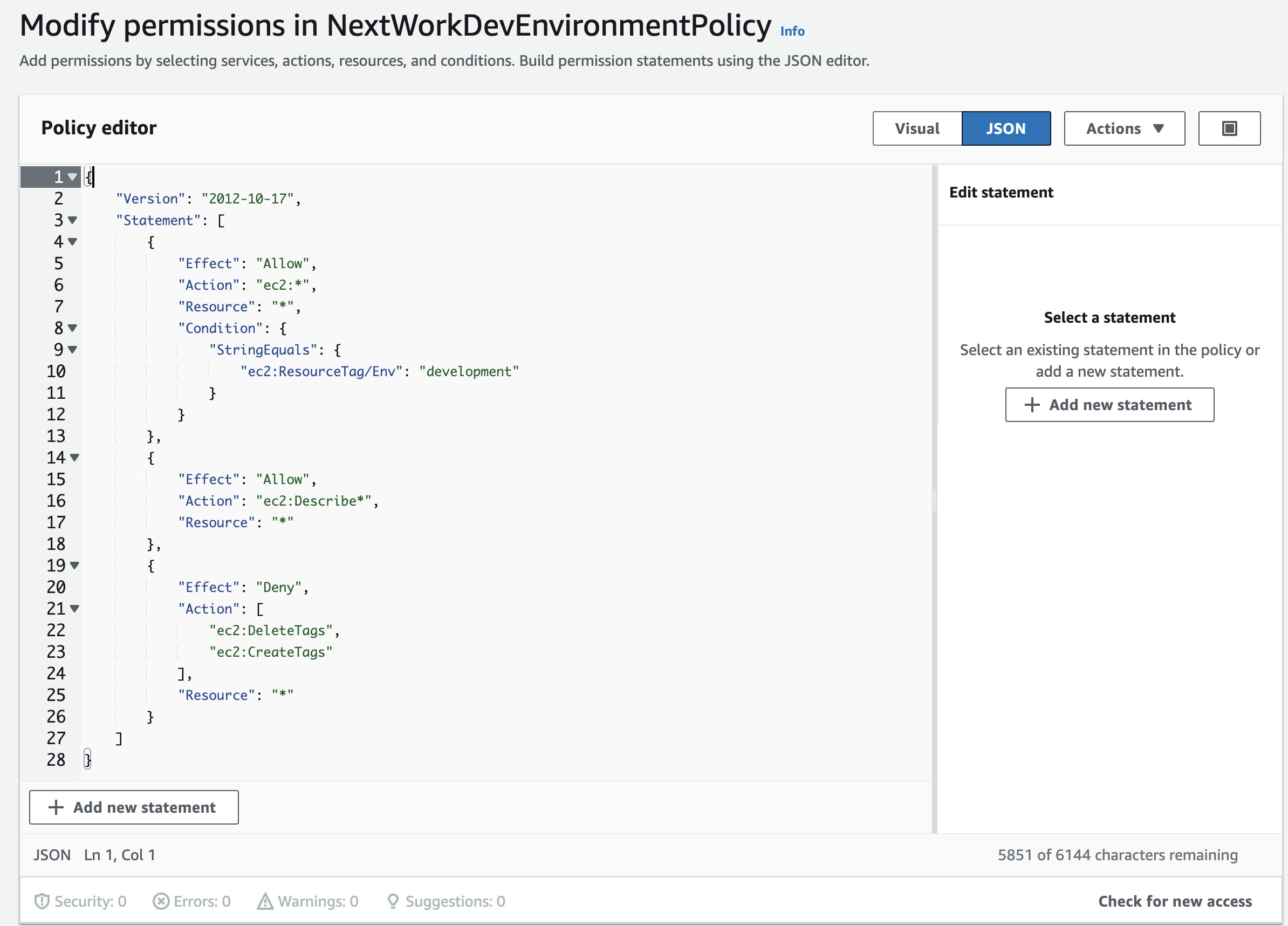
IAM stands for Identity and Access Management and IAM Policy is about giving permissions to IAM users, groups, or roles, saying what they can or can't do on certain resources, and when those rules kick in.
Step 3: Create IAM User and User Group
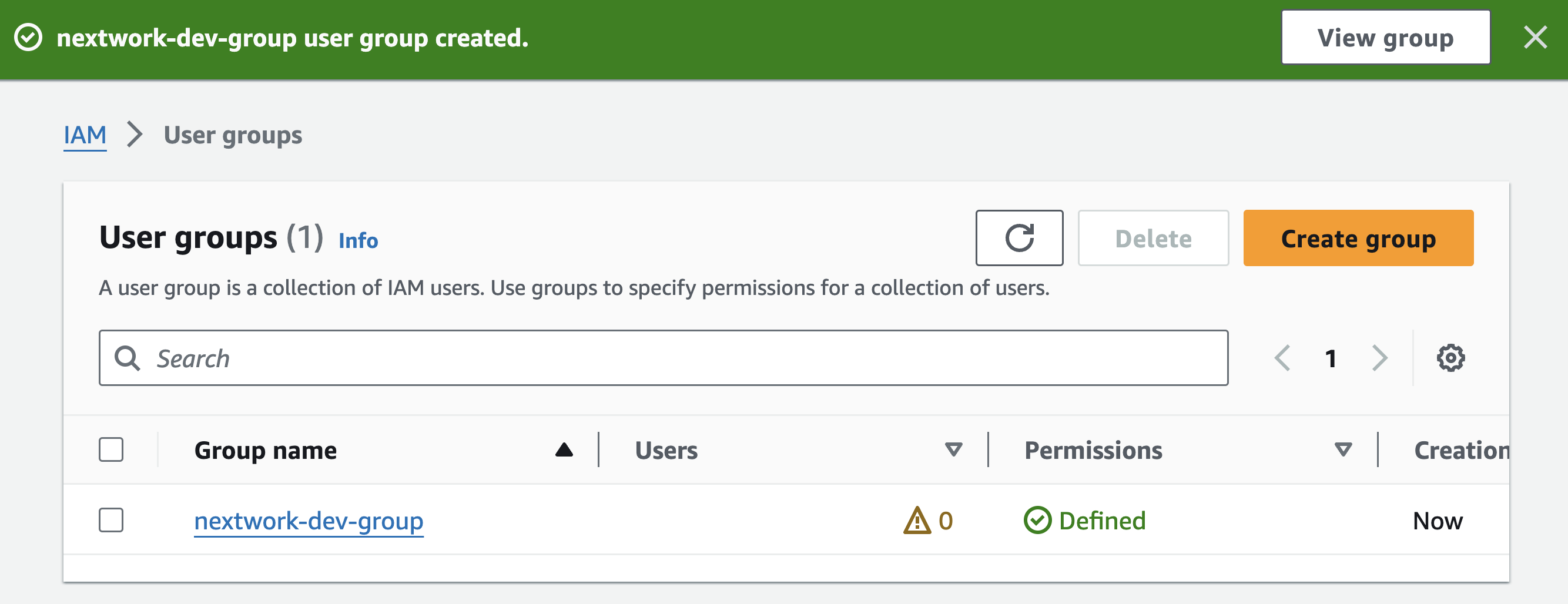
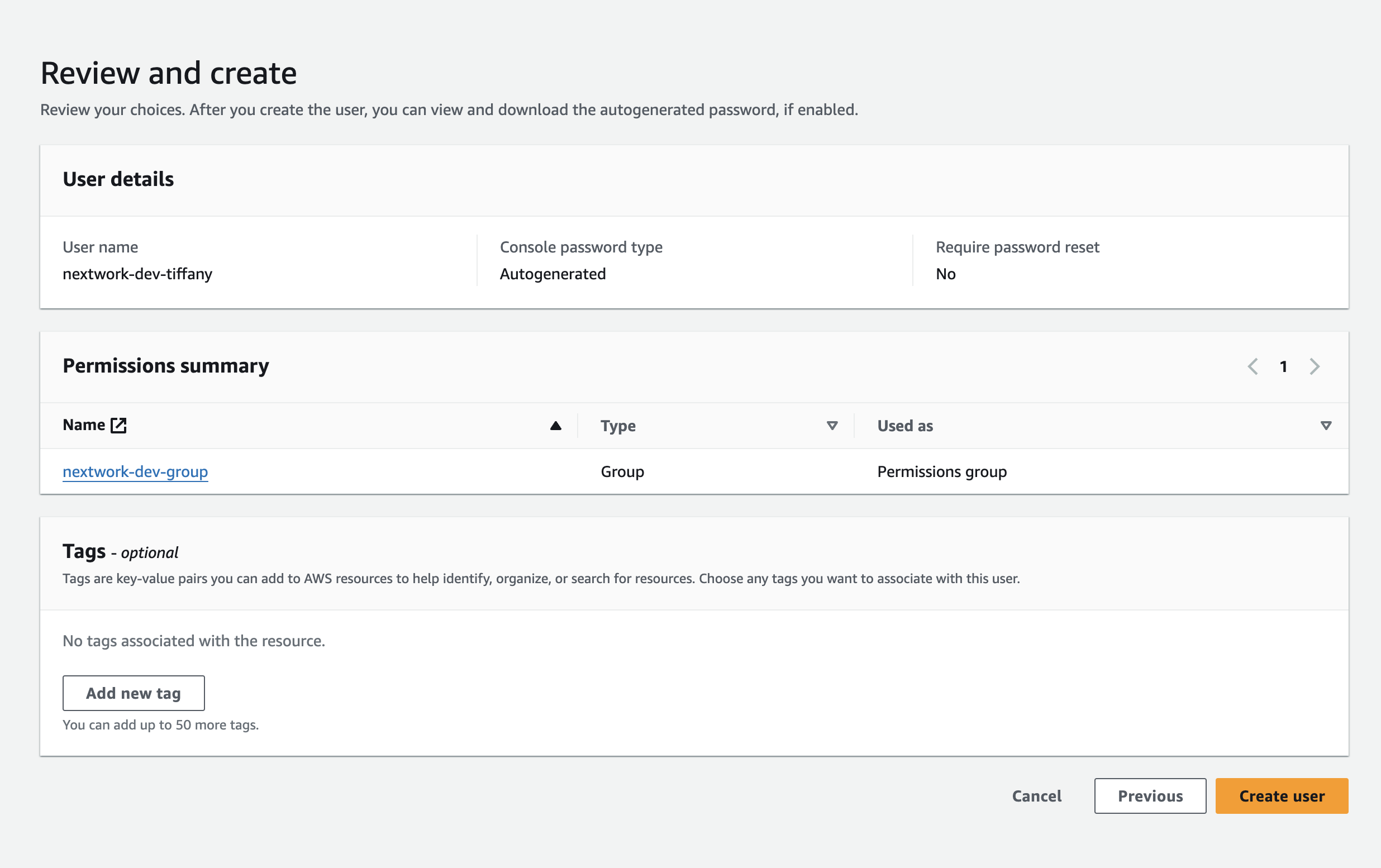
Here I created a new user group and then a new user to add to the group.
Step 4: Test IAM access for the User you've created.
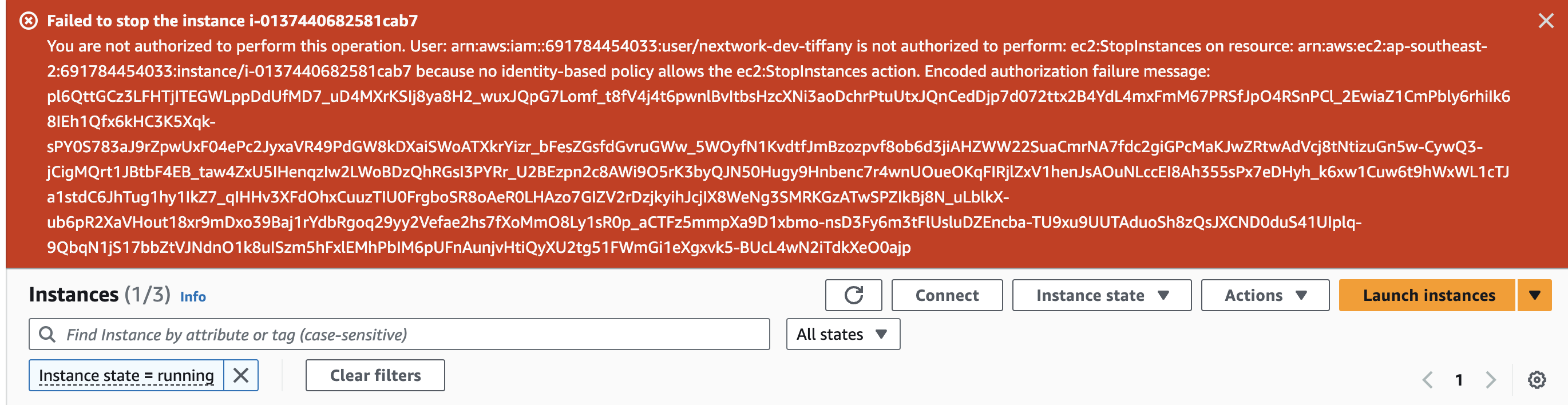
- Now with my IAM Policy, IAM User Group and IAM User all set up, I logged into my AWS account as the new user and tried to stop the production EC2 instance.The red banner tells me that I'm not authorised to stop this instance, which means the policy works!
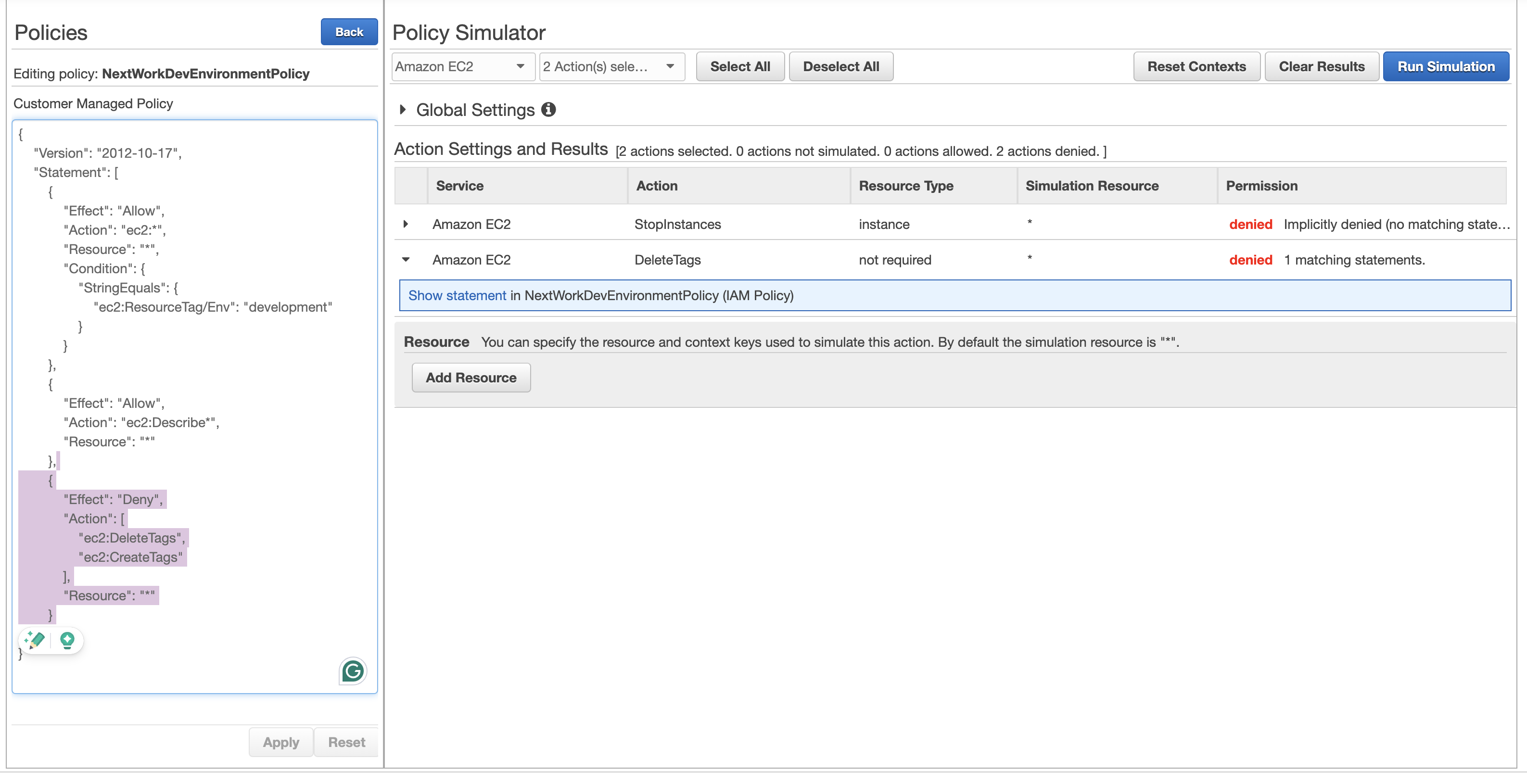
- I also used the IAM Policy Simulator to test out the policy in a more effective way. It is very handy as it is able to show exactly which statement in the IAM policy is blocking the user.
An error I ran into was...👀
When I was testing the access, I noticed that the action permission to the development EC2 instance wasn't act as expected. I checked my instance and policy again and noticed that I set the first letter in capital in the tag which is different from the policy JSON file that caused the issue.
What I leart from the error ✏️:
Make sure the tag name matches the policy in a case sensitive manner!