April 2024
How I host a website on Amazon S3?
In this project, I:
- 💡 Created and configured an Amazon S3 bucket, complete with ACLs, versioning, and public access.
- 💡 Uploaded website content, diving deep into how static websites function and how to host them on S3.
- 💡 Tackled public access settings and bucket visioning.
Step 1: Create a S3 bucket
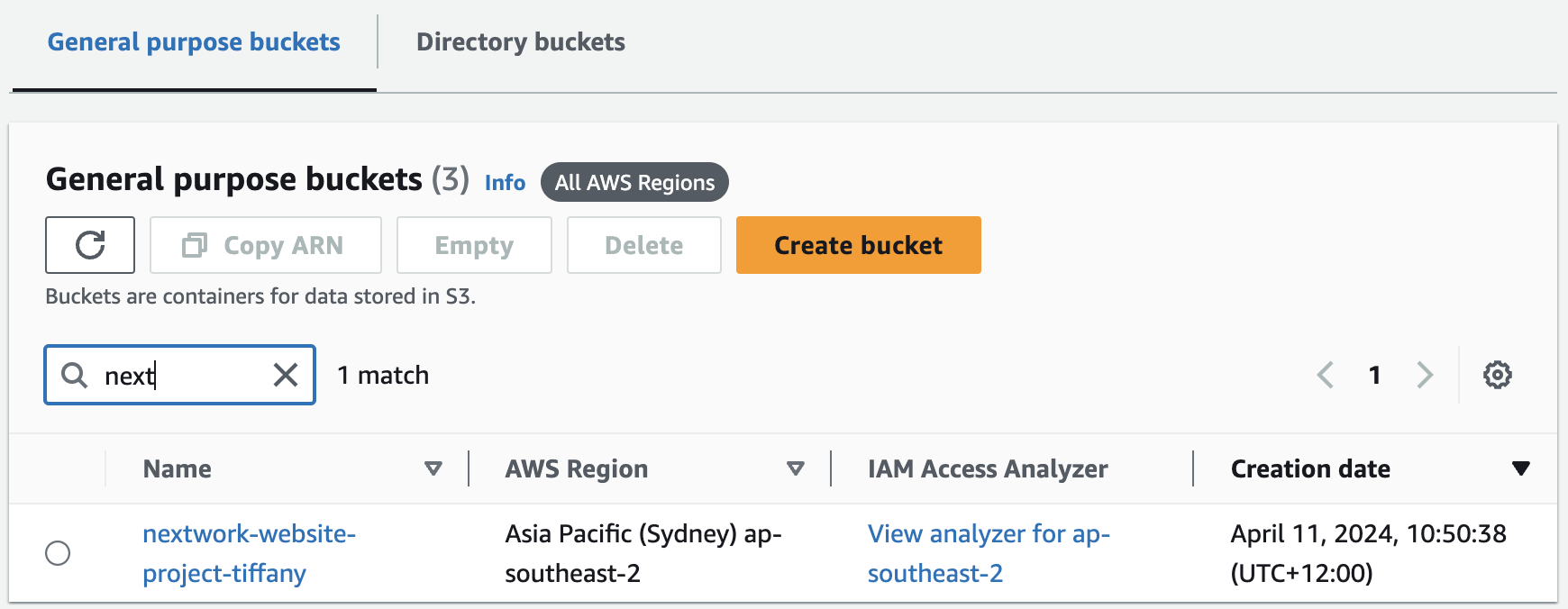
Make sure ACLs, public access and bucket versioning are enabled.
Key notes ✏️:
What's ACL?
Access control list - A set of rules that decides who can get access to a resource.
Why need a unique bucket name?
An S3 bucket name is globally unique, and all AWS accounts share the namespace. After you create a bucket, no other AWS accounts in the entire world can use your bucket's name unless you delete the bucket.
Step 2: Upload website files into the bucket
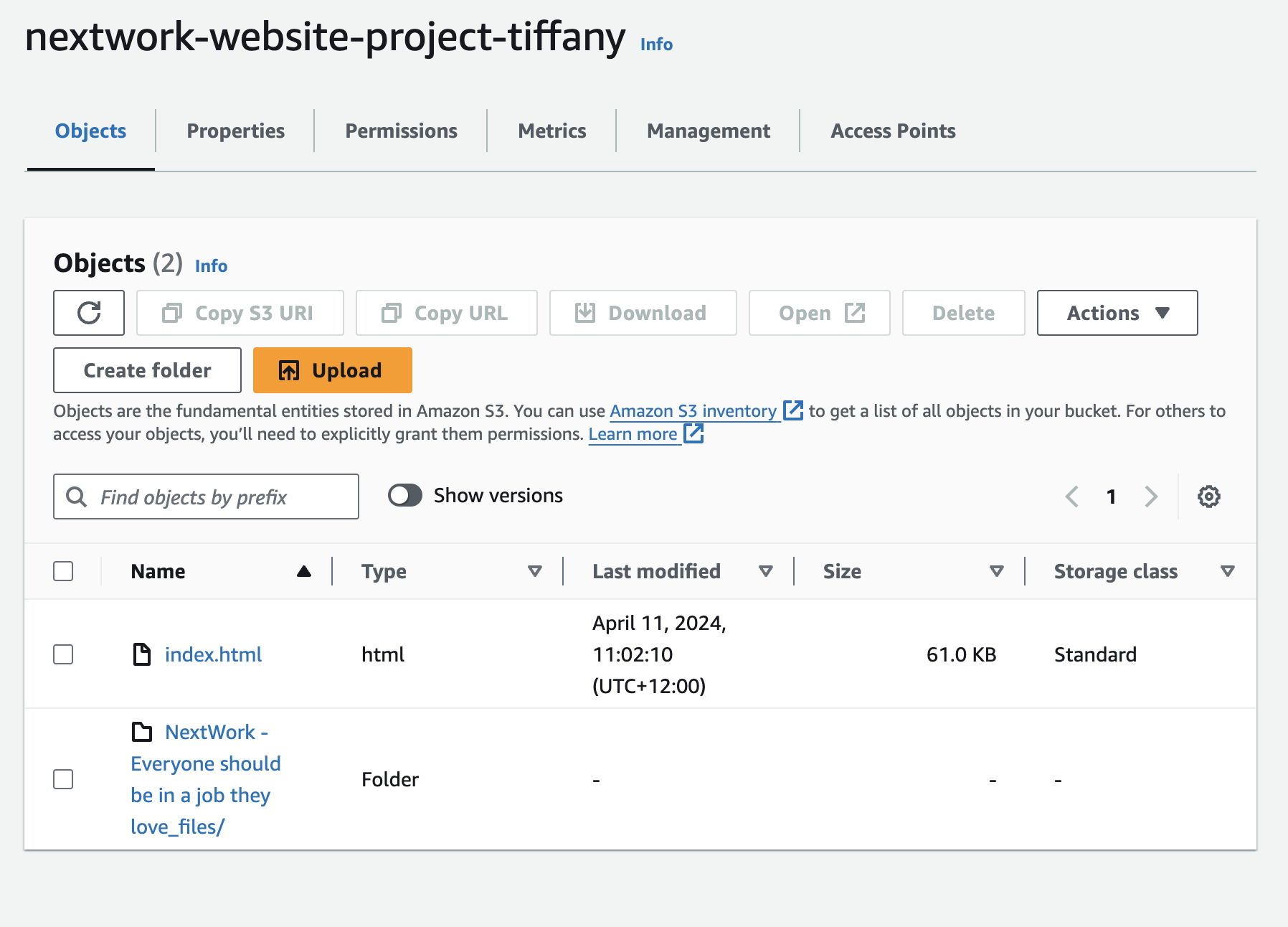
Step 3: Time to host the website!
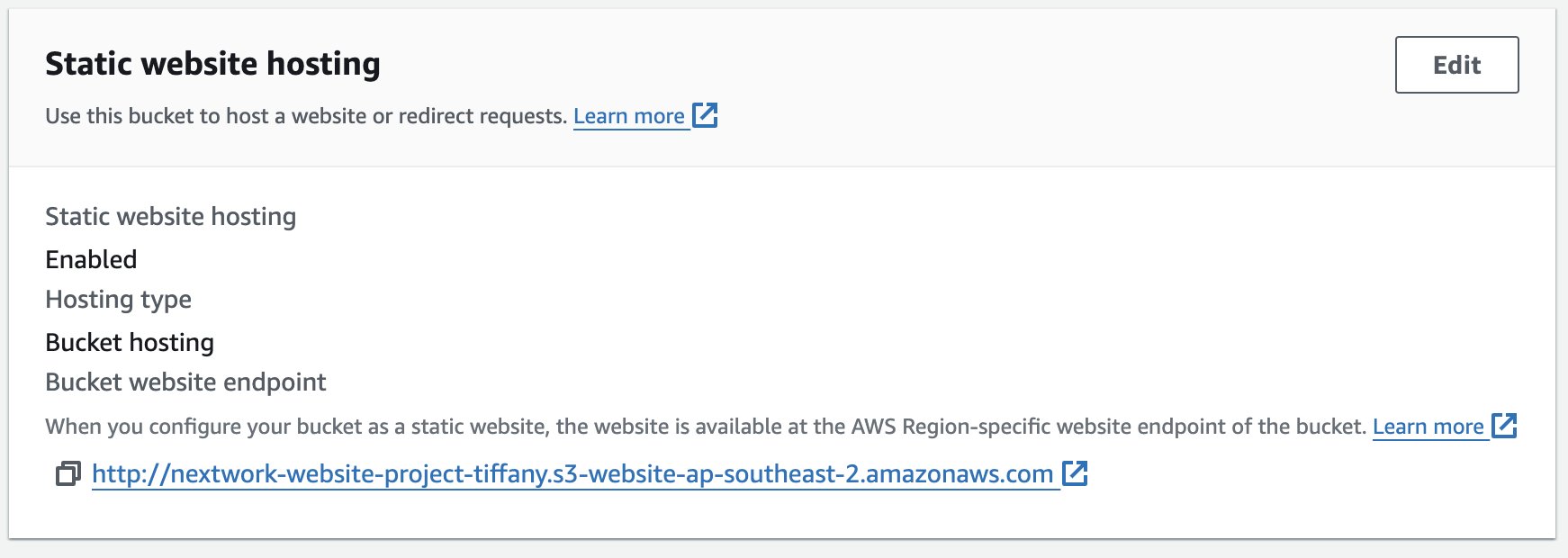
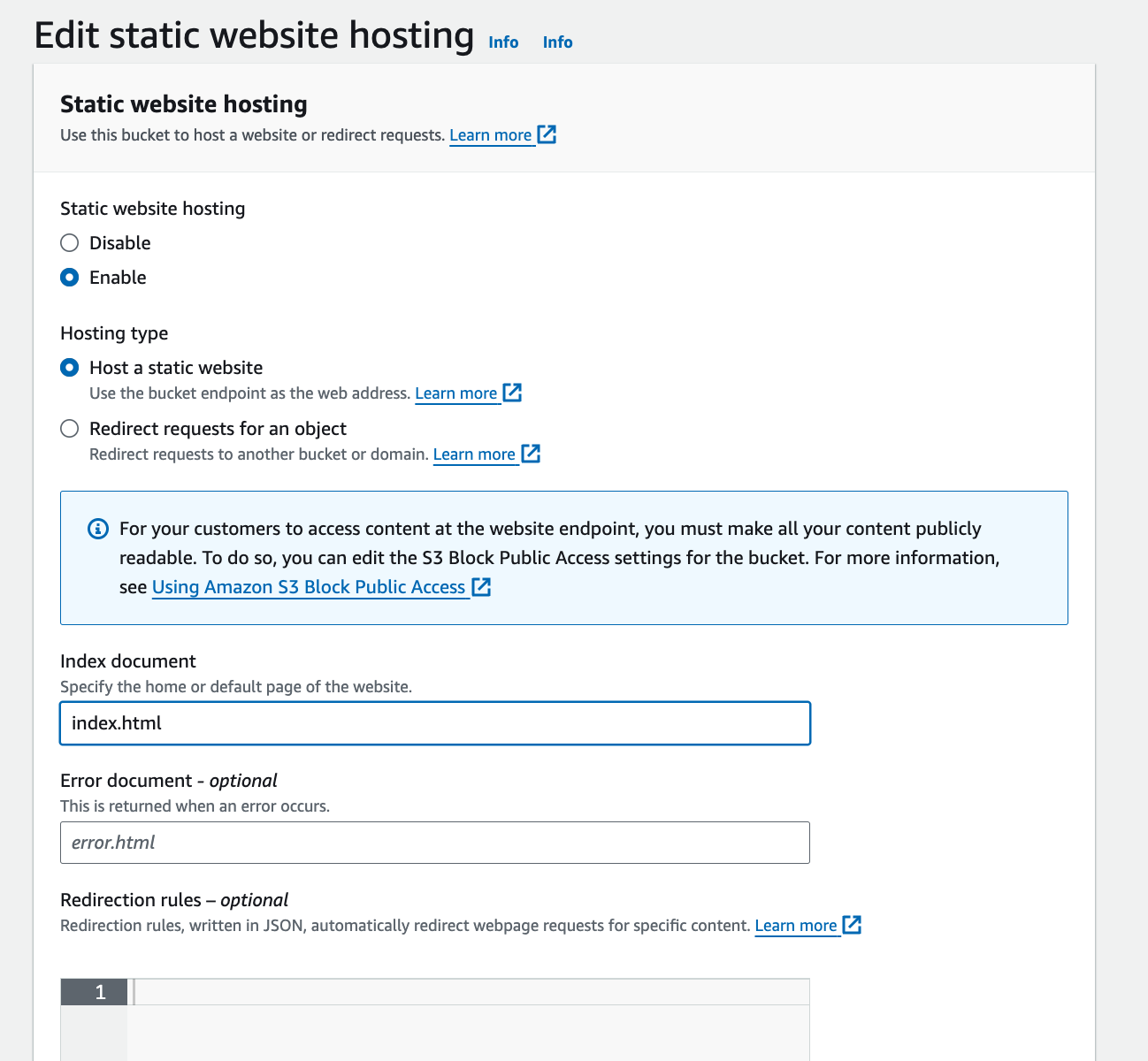
Scroll allllllllll the way down to the Static website hosting panel to enalble hosting.
Step 4: Add bucket versioning

- By default, bucket versioning is disabled.When bucket versioning is disabled, you can not reverse any future modification. For instance, you will lose the old file if you upload a new version. Similarly, the file you delete will gone forever forever with no option for recovery.
- Therefore, if you want to preserve all the old versions, make sure to enabling versioning
- It's crucial to note that once enabled, bucket versioning cannot be deactivated.
Step 5: Using a bucket policy to secure the bucket
If you want to protect your HTML file that no one can delete them. You can apply a bucket policy!
- Choose the Permissions tab in the bucket page.
- Choose Edit to edit the policy.
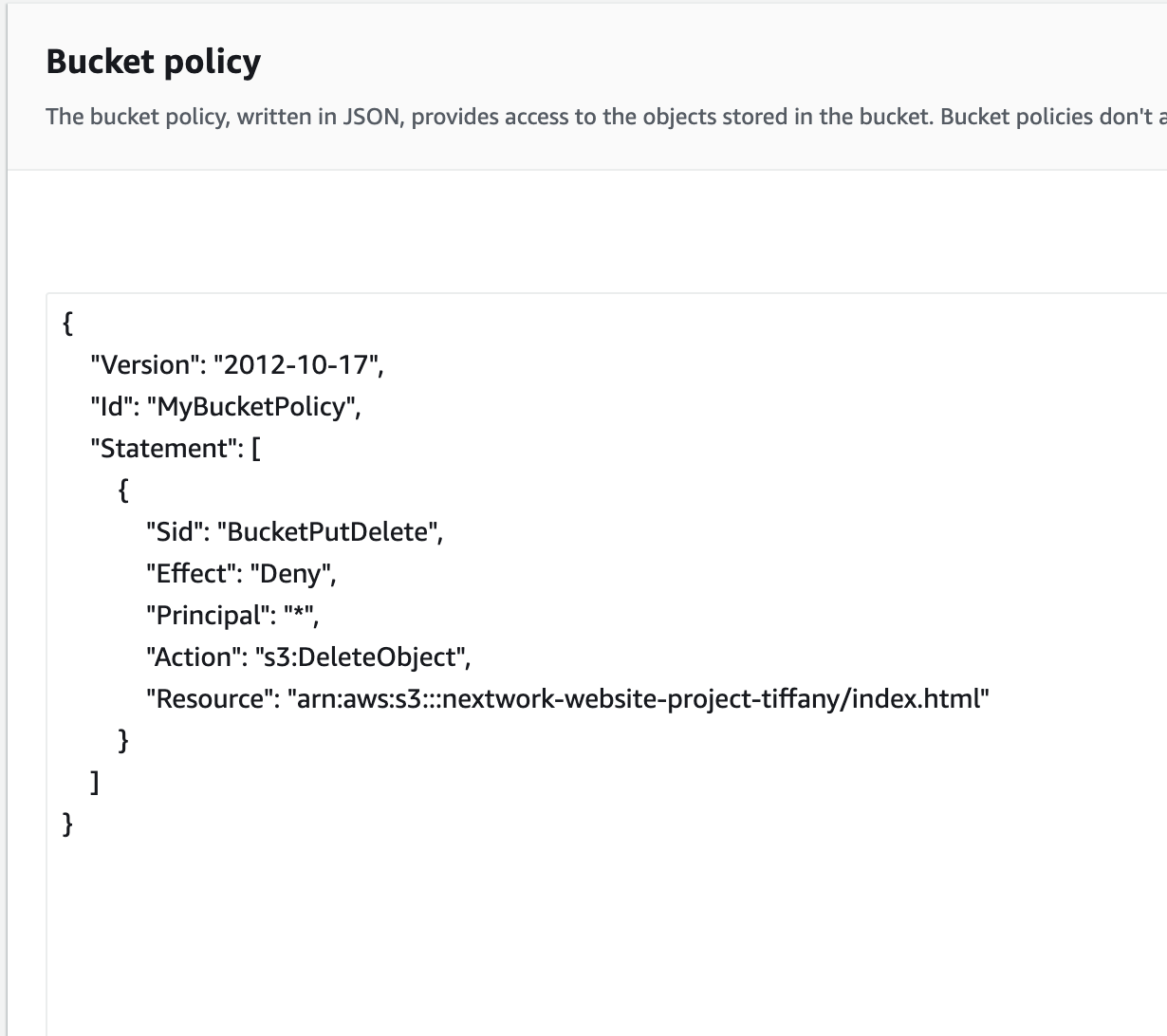
Voila! Now no one can delete your bucket without permission!